
Why Figma-to-HTML5 Is a Production Problem, Not Just a Design Problem
Display and programmatic are no longer side channels.
In the U.S., internet ad revenue hit $294.6B in 2025, with $81.6B in display and $162.4B in programmatic spend. That volume turns HTML5 ad production into a scale problem: your real bottleneck is shipping enough variants, fast enough, without breaking the brand.
Most teams already have strong concepts in Figma or Adobe. Where things break is the handoff to production — the jump from design files to live HTML5 ads in Google Ads, DV360, retail media, and networks.
This article walks through a step-by-step workflow to go from Figma (or Adobe) to live HTML5 banners:
Without losing visual fidelity
Without days of manual rebuilds
With brand and spec compliance baked in
And it explains how a dedicated production layer — like Viewst, an HTML5-native ad production platform — removes the non-creative suffering from that process.
The Handoff Gap: Why Figma Files Don’t Automatically Become Ads
Before we fix the workflow, it’s useful to be clear on where it breaks.
Typical Pitfalls When Going From Figma to HTML5
Common issues teams see in their Figma-to-HTML5 ads workflow:
Manual rebuilds in code or Web Designer
Developers re-create designs with custom templates, wrappers, backup images, and ZIP packaging.
That’s slow, fragile, and rarely pixel-perfect.
Ambiguous files and missing specs
Figma’s own guidance recommends annotations, component naming, export settings, and “Ready for development” markers.
When those are missing, developers guess — and ads diverge from the original design.
Flattened assets too early
Designers export flat PNGs or SVGs, then someone tries to animate or adapt sizes later.
Without editable structure, every change is a rebuild.
Brand drift in local versions
Multiple markets and teams adapt creatives directly in code or image editors.
Fonts, spacing, and colors slide off-brand over time.
No single source of truth
Assets move between Figma, Photoshop, Google Web Designer, email, and Slack.
There’s no central place to manage resizes, animations, approvals, and exports.
In short: the handoff gap is built into most workflows.
Figma is optimized for design; ad servers are optimized for delivery.
The messy layer in between — resizing, animating, QA’ing, and exporting — is often left to improvised tools and manual effort.
The New Model: One Master Creative → Many HTML5 Outputs
High-volume teams and platforms (Viewst, Bannerflow, Smartly, Google Ads Creative Studio) are converging on a simple model:
One master creative in design → many production-ready HTML5 outputs.
Everything — resizes, localizations, motion, and formats — is derived from a single structured asset.
Why this matters for creative operations:
Speed and scale
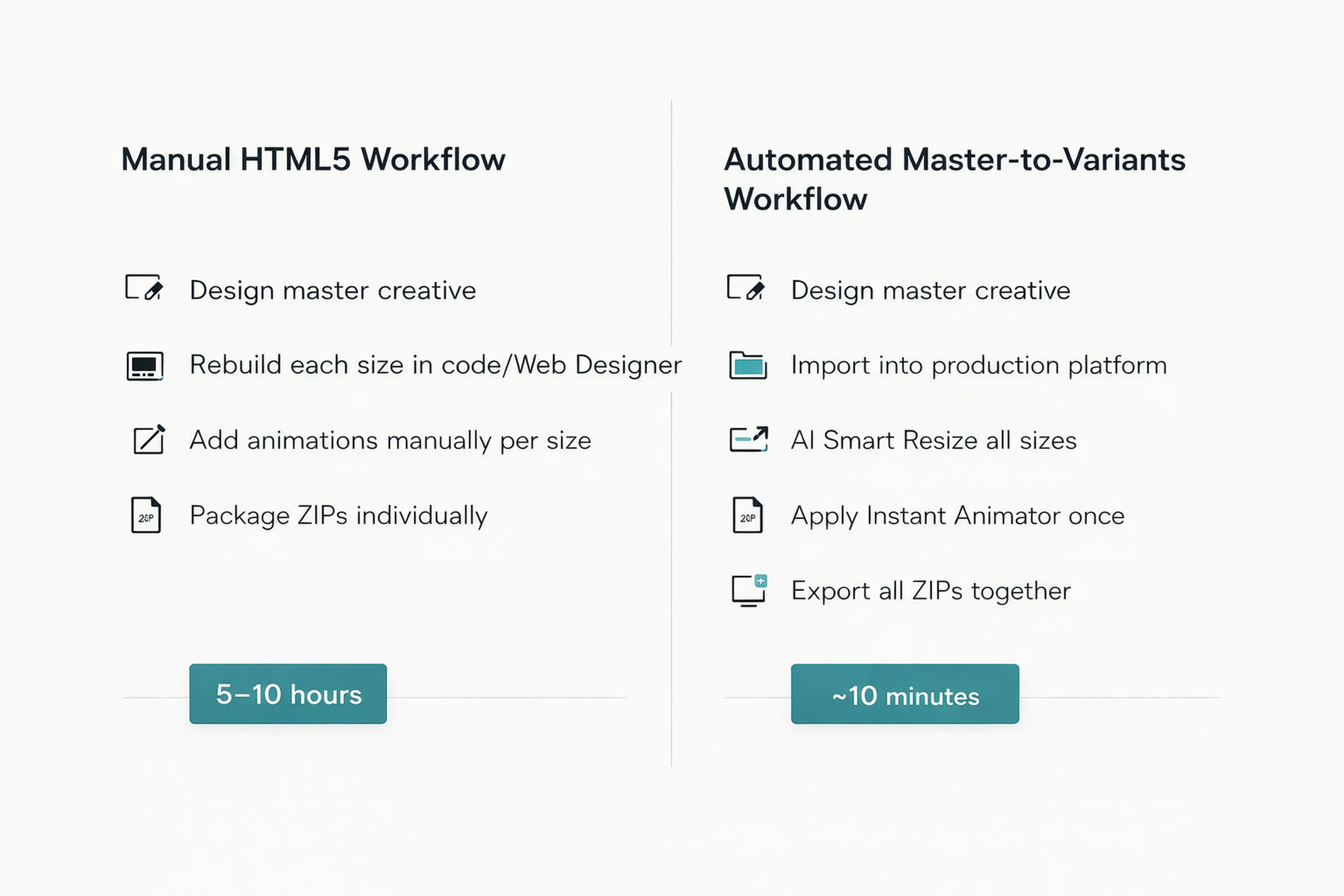
Viewst’s Wister case study shows HTML5 banner-set creation dropped to ~10 minutes per set, saving 5–10 hours per campaign while supporting 16–30 creative variations.Quality and consistency
The master creative acts as the single source of truth.
Brandbooks and locked styling propagate consistently across all sizes and markets.
AI as production automation, not art direction
In a Celtra/Digiday survey, 73% of respondents already use generative AI in design and production, and 67% want more automation. Winning teams use AI to remove mechanical work (resizes, exports, basic animation), not creative judgment.
This is exactly the layer Viewst is built to own: between design (Figma/Adobe) and media (ad servers/DSPs).
Step 1: Design a Master Creative in Figma/Adobe With Production in Mind
Your Figma or Adobe file is the foundation.
To avoid expensive rebuilds later, structure it for implementation before it leaves design.
How to Prepare Figma Files for HTML5 Ad Production
Follow Figma’s handoff best practices — but with banner production explicitly in mind:
Name layers and components clearly
Use semantic names likecta_button,logo_lockup,headline,background_image. This makes it easy to map layers to HTML5 elements.Use reusable components for repeating elements
Build ad templates with components for headers, CTAs, logos, badges, etc.
This mirrors how your HTML5 banner templates will be structured.
Annotate interactions and motion
Briefly note intended animation on key elements: “fade-in headline”, “slide-in product image”, “looping background texture”.
It’s enough to give a production platform or motion designer a clear starting point.
Add export and sizing notes
Call out required sizes and ratios (300x250, 160x600, 728x90, 300x600, 970x250, etc.).
Treat the master as a responsive blueprint for all formats.
Mark the master creative as ‘Ready for production’
Use Figma’s “Ready for development” markers or a dedicated page.
That signals when the file is stable enough for the production layer.
Don’t Flatten Too Early
Avoid exporting the design as a single flat image.
Keeping layers intact matters because:
AI-based tools like Viewst’s AI Smart Resize and AI Image Deflatening work best with structured assets.
Editable type, shapes, and groups allow precise animation and responsive layout.
Structural updates (new headline, fresh offer, updated logo) can propagate across all formats from one master.
If you do inherit flat assets (old PSDs, static PNGs, past campaigns), platforms like Viewst can still help by deflatening them into editable HTML5 components. But starting with a well-structured file is always cheaper.
Step 2: Import Into a Dedicated HTML5 Production Layer
The biggest shift is mindset: stop treating HTML5 ad production as a developer-only task. Instead, move from design into a specialized production studio.
Why a Production Layer Matters
A dedicated HTML5 production platform like Viewst sits between design and media:
Takes in design files from Figma, Adobe, Canva, Photoshop, and others.
Maintains layout fidelity while converting them into native HTML5 banner structures.
Centralizes resizing, animation, versioning, QA, and export into one workflow.
This replaces fragmented tooling:
No more bouncing between Figma, Web Designer, separate animation tools, manual ZIP packaging, and ad-server specs.
Collaboration, comments, and approvals live where the banners are actually built.
How the Import Step Works in Practice
The typical flow:
Export structured assets from Figma/Adobe
SVGs or layered images for graphics
Typography mapped to web-safe or brand-approved fonts
Brand colors documented or embedded via brandbook
Upload or sync into Viewst
Start from a master layout that mirrors your base design.
Use AI Image Deflatening if you’re starting from a flat asset.
Map layers to banner elements
Headlines, logos, CTAs, imagery become discrete HTML5 components.
Grouping mirrors your original Figma structure.
The result: a master creative reconstructed as native HTML5, ready for automated resizing and animation.
Step 3: Generate All HTML5 Sizes From One Master
Once your master creative lives inside the production layer, you can scale it.
This is where automation saves hours per campaign.
Automated Banner Ad Generation From a Single Source
Use tools like Viewst’s AI Smart Resize to create all required formats:
Standard IAB sizes (300x250, 160x600, 728x90, etc.)
Mobile-specific sizes
Custom placements for retail media, walled gardens, and proprietary formats
Instead of manually rebuilding every size, the platform:
Reflows layout intelligently
Preserves hierarchy (logo, headline, image, CTA) across wide, tall, and square formats.Maintains design fidelity
Typography, spacing, and ratios follow brandbooks and master constraints.Keeps elements editable and synced
Change the headline once; it updates across all sizes.
This is the core bridge from “Figma concept” to “responsive HTML5 banner set” — done in minutes instead of days.
Here’s where a visual helps clarify the impact.
Step 4: Add Motion and Interactions Inside the Production Environment
Traditional HTML5 workflows (Adobe, Google Web Designer) rely on:
Custom templates and code wrappers
Masking and actions layers
Publisher-specific publish settings
That’s powerful, but heavy for production teams under pressure.
No-Code Motion With Instant Animation
In a production platform like Viewst, motion is added directly to HTML5 layers:
AI Instant Animator applies one-click motion across selected layers.
Designers can control:
Entry/exit animations
Timing and easing
Looping and total duration (e.g., capped at 30 seconds per Google guidelines).
This lets creative teams:
Use subtle motion to lift performance without overcomplicating build.
Test different animation variants for A/B experiments at scale.
Lottie and Advanced Animation in HTML5 Ads
If you already have Lottie animations or more complex motion:
Import Lottie assets as components in the banner.
Ensure their weight and call patterns stay within ad-spec limits.
Combine them with simpler layer-based animation for a balanced, performant creative.
Because everything lives in the production layer, you’re animating directly in the HTML5 environment — not in a separate design tool that then needs rebuilding.
Step 5: QA Against Ad-Specs Before Export
The most expensive production failures happen at the end:
Ads rejected by networks
Creatives that autoplay audio or exceed file-size limits
Excessive HTTP calls slowing campaigns
A dedicated production platform should bake QA into the workflow.
Key HTML5 Ad Specs to Check (Example: Google DV360)
Before exporting, validate against current guidelines:
File size
Total downloaded size up to 5 MB for HTML5 display creatives.
Some mobile placements require 150 KB initial load, then up to 2.2 MB additional load.
Animation rules
Max 30 seconds of animation.
No infinite heavy loops that hurt UX.
Audio and interaction
No autoplay audio.
Click opens in a new tab/window.
Technical limits
Up to 100 HTTP calls max per ad.
Up to 25 cookies max.
Automated Ad-Spec Compliance
With a production platform like Viewst:
QA checks are applied to each banner set before export.
Out-of-spec assets are flagged early, not at trafficking.
You can store network profiles (DV360, Google Ads, retail media) to validate against different rules.
This avoids last-minute rebuilds when the media team hits upload.
Step 6: Export, Preview, and Traffic Into Media Platforms
Once your banner set passes QA, the final step is packaging.
Production-Ready HTML5 Export
A dedicated HTML5 ad production platform handles:
ZIP packaging for HTML5 ads
Backup images or GIF/MP4 fallbacks where required
Click tags and tracking parameters mapped correctly
Viewst exports native editable HTML5, plus GIF/MP4 when needed. That means you’re not shipping flat images — you’re shipping ads that can be updated and optimized over time.
Direct Workflow Into Google and Other Platforms
The typical workflow:
Upload ZIP packages into Google Ads, DV360, CM360, or other ad servers.
Let automatic and manual reviews run.
Keep the master creative in Viewst as the source of truth for future edits.
This is where a dedicated production layer pays off:
When the performance marketer wants a new offer or A/B variant, you update the master.
All formats sync; new ZIPs are generated; trafficking continues without disruption.
Step 7: Govern Brand and Collaboration Inside the Production Layer
For mid-market and enterprise teams, speed alone isn’t enough. Brand control and collaboration are strategic priorities.
Brandbooks and Governance
Viewst’s approach is to treat brand standards as non-negotiable:
Locked brandbooks control typography, colors, and spacing.
Those rules propagate across all banner sets and markets.
Local teams can adapt messaging within defined guardrails.
In an AI-driven world, this matters more than ever. Automation should reinforce brand standards, not undermine them.
Collaboration Where the Ads Are Built
Feedback and approvals often live in email and chat threads. That slows campaigns and creates version confusion.
A production platform centralizes:
Comments and contextual feedback directly on banner sets.
Approval flows with clear sign-off stages.
Previews that stakeholders can review in-browser for each size.
This respects both creative integrity and operational rigor. Design leaders and creative ops can see exactly what will ship — across dozens of sizes and variations — from one environment.
Putting It All Together: A Practical Workflow
Here’s the end-to-end path from Figma to HTML5 ads without manual rebuilds:
Design a robust master creative in Figma/Adobe
Clear layer names, components, annotations, and size requirements.
Keep the master structured, not flat
Preserve editable type and groups.
Import into a dedicated production layer (e.g., Viewst)
Map design layers to HTML5 components.
Use AI Smart Resize to generate all banner formats
One master → dozens of sizes and placements.
Add motion and interactions with Instant Animator
Ensure animation remains on-brand and within spec.
Run automated QA against ad-network rules
File size, animation duration, audio behavior, HTTP calls, cookies.
Export production-ready HTML5 / GIF / MP4 and traffic into media
Keep the master creative as the source of truth for all future changes.
Govern brandbooks and collaboration inside the same environment
No more scattered approvals and off-template edits.
For teams under pressure to scale output without scaling headcount, this is how you bridge the gap between design and media — and give designers their time back.
FAQ: Figma to HTML5 Ads and the Role of a Production Platform
1. Can I export HTML5 directly from Figma?
Figma doesn’t export production-ready HTML5 banner ads out of the box. You can export assets (SVG, PNG, etc.), but you still need a production layer to:
Build native HTML5 structures
Add motion and interactions
Apply ad-spec compliance and packaging for ad servers
Tools like Viewst are built to take those Figma assets and turn them into ready-to-ship HTML5 banners.
2. How do I avoid losing design fidelity when converting Figma designs to HTML5 banners?
You preserve fidelity by:
Structuring the Figma file with clear layers and components
Importing into a platform that respects layout and typography
Using brandbooks to lock fonts, colors, and spacing
Viewst’s true WYSIWYG editor ensures the editor equals output, so what you see in the production environment is what you ship to media.
3. What’s the main advantage of a dedicated HTML5 ad production platform over Google Web Designer alone?
Google Web Designer is powerful but geared toward manual build. A production platform like Viewst:
Automates resizing and variant creation from one master
Centralizes reviews, approvals, and brand governance
Exports native HTML5, GIF, and MP4 at scale
You get both creative quality and operational speed, without asking designers or developers to hand-build every format.
4. How does Viewst help reduce manual rebuilds between Figma and HTML?
Viewst addresses rebuilds by:
Importing Figma/Adobe assets into a master HTML5 creative
Using AI Smart Resize for all sizes from that master
Applying AI Instant Animator and brandbooks to stay consistent
Updates to copy, imagery, or layout are made once and synced across all formats — no need to re-code every banner.
5. Is this workflow only for agencies, or can in-house teams use it too?
Both. Viewst is designed for:
Agencies managing multi-client, multi-market campaigns
In-house teams at SaaS, fintech, e-commerce, automotive, financial services, and app-first brands
If you’re running high-volume display and programmatic and need to scale HTML5 ad production without scaling headcount, a dedicated production studio like Viewst becomes core infrastructure, not just another design tool.

Victoria is the CEO at Viewst. She is a serial entrepreneur and startup founder. She worked in Investment Banking for 9 years as international funds sales, trader, and portfolio manager. Then she decided to switch to her own startup. In 2017 Victoria founded Profit Button (a new kind of rich media banners), the project has grown to 8 countries on 3 continents in 2 years. In 2021 she founded Viewst startup. The company now has clients from 43 countries, including the USA, Canada, England, France, Brazil, Kenya, Indonesia, etc.
In this article
" height="11.060000000000002px" id="wzBCZ87AK" transform="translate(6.47 2.47)" width="6.590000000000003px"/></g></svg>)